

Send an availability check
Ask a group of people if they're free on your dates. They answer with one tap.
An availability check asks people if they're free for a role on certain dates. It isn't an offer: nobody is committed until you send an offer and they accept.
Send a check
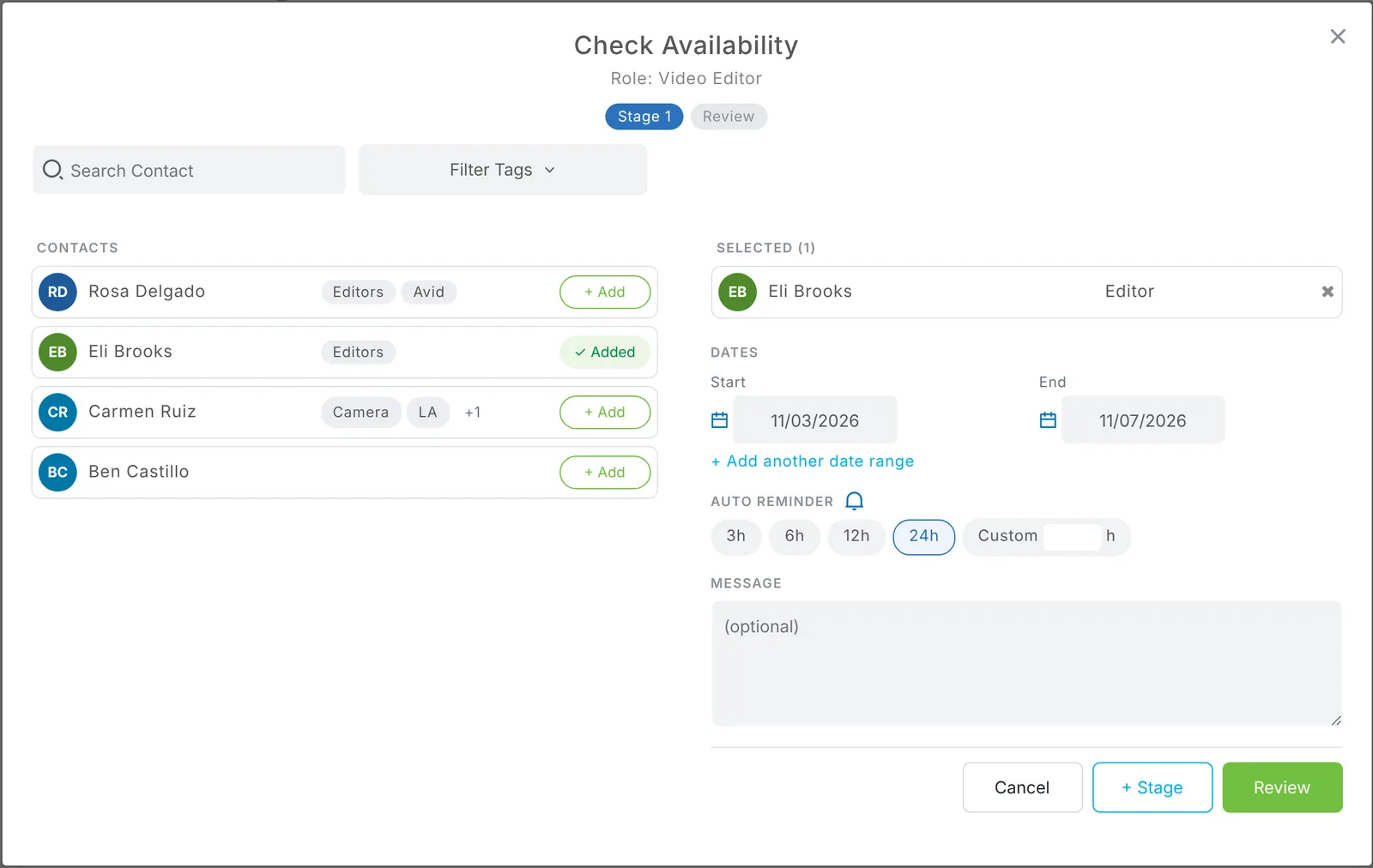
- Open the project and, in the role, choose Check Availability.
- Choose + Add next to each person you want to ask. Search by name or use Filter Tags.
- Set the dates. Use + Add another date range for split dates, like Nov 3–5 and Nov 10–11.
- Pick an Auto reminder: 3h, 6h, 12h, 24h or Custom. See Automatic reminders.
- Add a message if you like (call times, what the job is).
- Choose Review, check everything, and send.
What they get
Each person gets an email like this, with three buttons: I'm available, Some of these dates and Not available. One tap answers. They don't need an account. What your people see
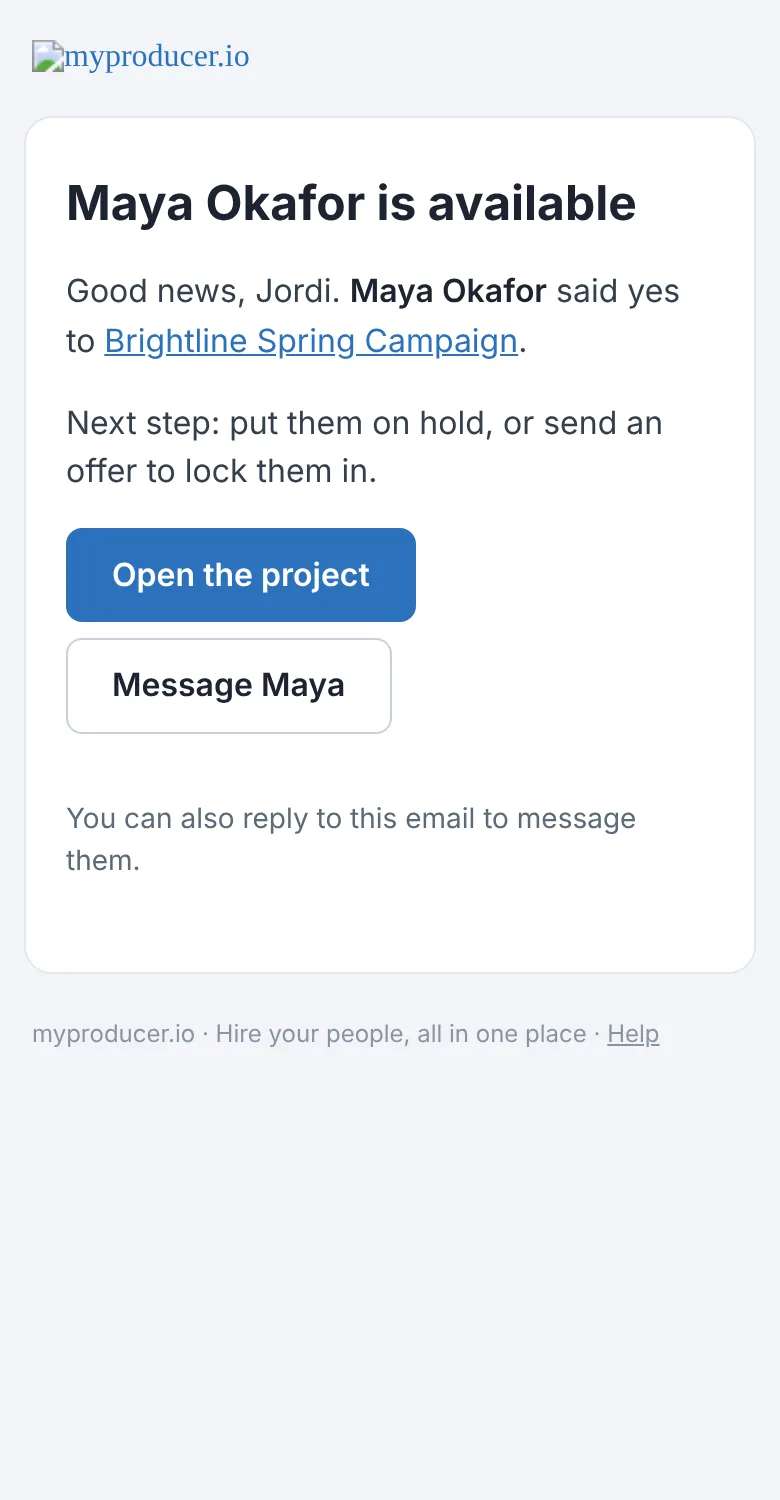
As answers come in
- The person's status on the project page changes to Available, Limited Availability or Unavailable.
- You get an email and a notification for each answer.
- Next steps from their page: request a hold or send an offer.
Tip: Want a backup list? Use + Stage to line up a second group that's asked automatically if enough people in the first group say no. Stages
Updated October 2026. Something not right? Tell us.