

Add teammates
Bring in the people who help you run projects. They get access to the projects you add them to.
Teammates are people who help you hire: a coordinator, a fellow producer, an assistant.
Add a teammate
- Go to Team (on a phone, More → Team).
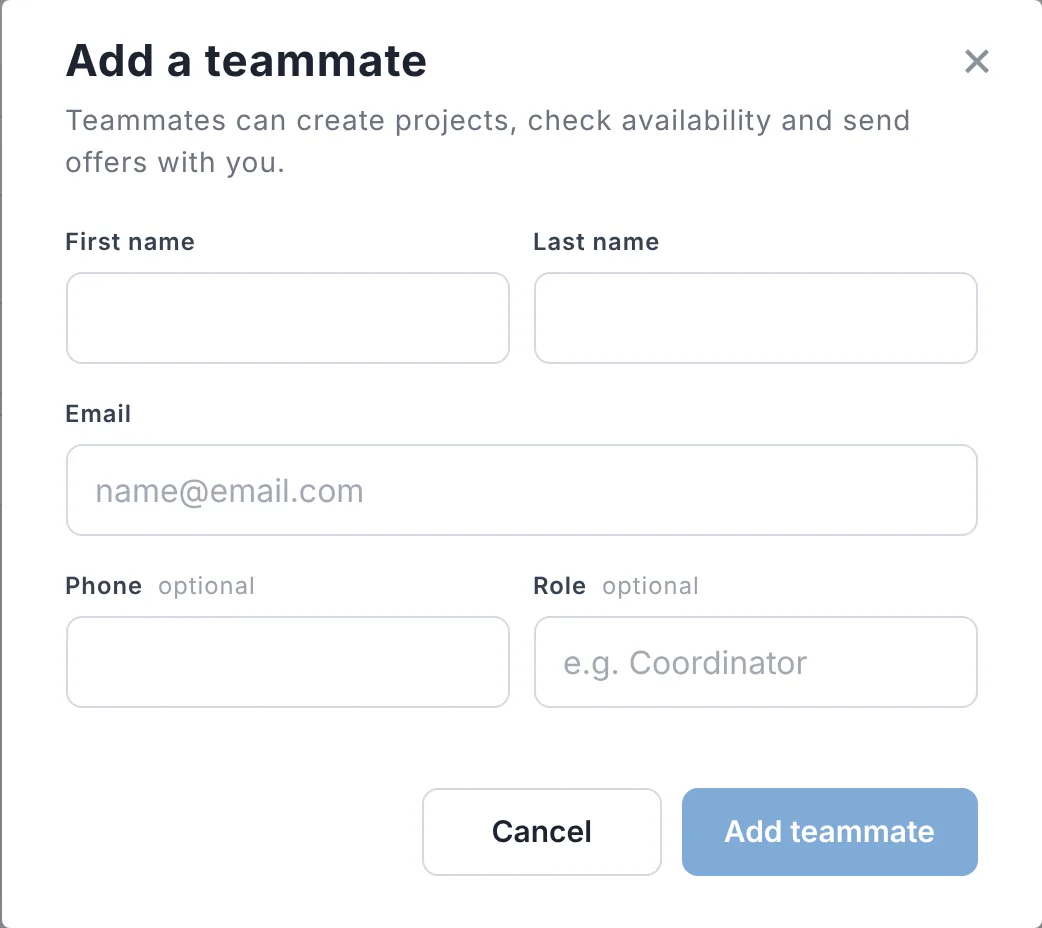
- Choose + Add to team next to someone in your contacts, or Add New Teammate to add someone new (first name, last name, email, and optionally phone and role).
- They get an email saying you added them, with a link to set up their account (or open their projects, if they already have one). There's nothing for them to accept.
Then add them to the projects they should work on: open each project and choose Team. Project access
How many teammates you can have
| Plan | Teammates |
|---|---|
| Free trial | Up to 3, free during the trial |
| Producer | Up to 2, each billed per seat |
| Business | 3 included; add more per seat |
See Plans and pricing for seat prices.
Remove a teammate
On Team, choose Remove next to them. They lose access to your projects right away. On Producer, their seat stops at the end of your billing period; on Business, an extra seat is credited straight away.
They still show on the projects they were on, faded, with No access. Hover over them for a reminder of how to restore access: add them back to your team (or upgrade, if their seat ended). To take them off a project for good, open its Team and choose Remove.
Heads up: If you're on the free trial and choose Producer, teammates you added during the trial are turned off. On Business, up to 3 carry over.
Updated October 2026. Something not right? Tell us.